Private voice cloning for narration

Your voice, ready for the next take.

Record once. Keep the voice. Rewrite the script whenever the work changes.

Upload a recording or record in your browser. Consent is required before a voice is created.

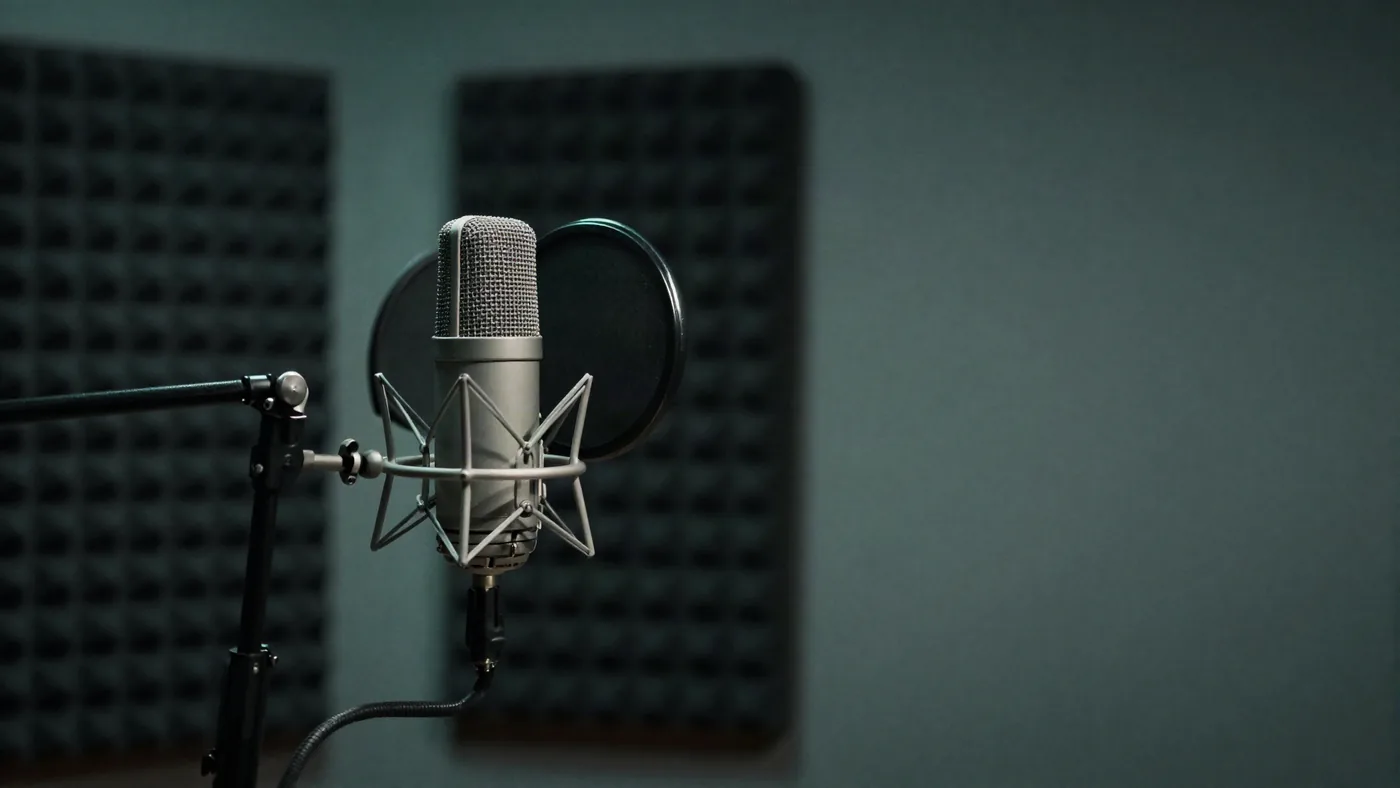
A condenser microphone on a boom arm in a room lined with acoustic foam.
One recordingseveral finished reads
Quick Clone5-10 secFast start for short projects
Studio Clone10 sec-5 minMore range for long-form narration
After processingUse in StudioOne private voice across your projects

Choose your starting point

Start fast. Add detail when the work demands it.

Both paths create a private voice you can preview before it enters Voice Picker. Quick Clone is included from Creator, Studio Clone from Pro, and generated speech uses 4× Credits.

Fast start

Quick Clone

A clear, natural voice for short recordings, quick revisions, and trying an idea before it becomes a series.

Source recording
5-10 seconds
Best for
Short-form narration
Plan and usage
Creator+ · 4× Credits
Next step
Preview, accept, write
Create a Quick Clone

Long-form

Studio Clone

More vocal range and detail for narration that needs a consistent studio feel across chapters, lessons, or episodes.

Source recording
10 seconds-5 minutes
Best for
Long-form narration
Plan and usage
Pro+ · 4× Credits
Next step
Preview, accept, produce
Create a Studio Clone

From recording to Studio.

A short, visible workflow keeps the important decisions in the open.

No hidden handoff. You see the lifecycle, listen to the preview, and decide when the voice is ready to use.

  1. 01
    Choose a clone path

    Pick Quick Clone for a fast start or Studio Clone for a longer, more varied source.

  2. 02
    Upload or record

    Bring a clean file or record directly in your browser, then add the voice details.

  3. 03
    Confirm consent

    Tell us you have the rights and permission to create and use this voice.

  4. 04
    Preview before you accept

    Processing can take a moment. When the preview is ready, listen before adding it to Voice Picker.

  5. 05
    Use it in Studio

    Choose the voice for your script and keep the same sound through the next revision.

The recording matters more than the room’s price tag.

A longer file cannot rescue noise, echo, or an inconsistent delivery. Start with a clean, comfortable read.

Bring a recording

What good source audio sounds like

  • One identifiable speaker
  • Quiet room with little reverb
  • Clear, natural speech at a steady distance
  • No music, overlapping voices, or long silence

Made for the work that keeps moving.

Your clone is useful when the words change, the deadline moves, or the next episode is already waiting.

Podcasts and audiobooks

Revise a passage without calling the microphone back into the room.

Courses and explainers

Keep terminology and delivery familiar across lessons and updates.

Announcements and marketing

Turn approved copy into a consistent voiceover when the message changes late.

Built with clear boundaries

Your voice stays under your control.

Cloning is powerful because it carries identity. The product should make the permission, lifecycle, and output status just as visible.

Consent before creationYou confirm you have the rights and permission to use every identifiable speaker’s recording.
Private to your accountYour accepted clone appears in your Voice Picker and is not presented as a public voice.
AI-generated output is disclosedNarrateHQ output may be labeled or disclosed as AI-generated where required.
Lifecycle you can seeProcessing, preview, active, failed, retry, paused, expired, and deleted states stay explicit.

Questions with useful answers.

Quick Clone accepts a 5-10 second source. Studio Clone accepts 10 seconds-5 minutes. Clear source audio matters more than adding unnecessary length.

Yes. The Create Voice flow supports both upload and browser recording, followed by a review step before processing.

Only when you have the necessary rights and explicit permission from every identifiable speaker. Consent is required before creation.

After processing completes, you can preview the result, accept it, and choose it from Voice Picker or use it in Studio.

You can retry processing or create a replacement from a cleaner recording. The original voice is not silently replaced.

Create your voice once. Keep narrating.

Create your voice